

Mist field guide
How to replace Chrome’s default new-tab page
Chrome does not offer a native “use any webpage” field for new tabs. A Chrome extension replaces the page through a declared new-tab override.
First, decide whether replacement is necessary
Chrome’s built-in page already supports a background, theme and simple shortcut controls. Use those when your goal is mainly visual.
A replacement makes sense for grouped shortcuts, a different layout, widgets or a data model that the native page does not provide. Every extension adds code and a publisher you need to trust.
Install a new-tab extension
Chrome extensions cannot be installed in Guest or Incognito mode. Managed work or school devices may block installation through policy.
- Open the extension’s official Chrome Web Store listing on a desktop computer.
- Verify the publisher, recent listing details, privacy disclosure and requested access.
- Select Add to Chrome, then review and confirm the install dialog.
- Open a new tab. If Chrome asks whether to keep the change, confirm only the extension you intended to install.
- Test its settings, keyboard behavior and offline state before adding sensitive links.
Understand what the extension is changing
A Manifest V3 extension declares `chrome_url_overrides.newtab` and points it to a bundled HTML file. Chrome then loads that extension page when a normal new tab opens.
Only one extension can override a given built-in page at a time. Incognito new tabs are not overridden, according to Chrome’s developer documentation.
Review permissions and data paths
A new-tab extension does not automatically need access to every website. Check whether it requests broad host access, browsing history, tabs, bookmarks or only specific optional services.
Permissions are only part of the review. A page can load remote images, weather or account data. Read the privacy policy for storage, analytics, account sync and third-party providers.
Restore Chrome’s default new tab
Removing an extension normally removes its local extension data. Export any configuration you want to keep before uninstalling.
- Open `chrome://extensions`.
- Find the extension controlling the new tab.
- Toggle it off to test the default page, or select Remove for permanent removal.
- Open a new tab and use Customize Chrome to restore your preferred native theme and shortcuts.
Troubleshoot common problems
- Wrong page appears: disable other new-tab extensions and keep only one override.
- Install button unavailable: use desktop Chrome, leave Guest/Incognito mode and check device policy.
- Page feels slow: disable network widgets and compare a fresh offline tab.
- Shortcuts disappeared after reinstall: restore from the extension’s export if it provides one.
- Chrome reverted the change: revisit the extension page and confirm the intended override.
Replacing the page with Mist
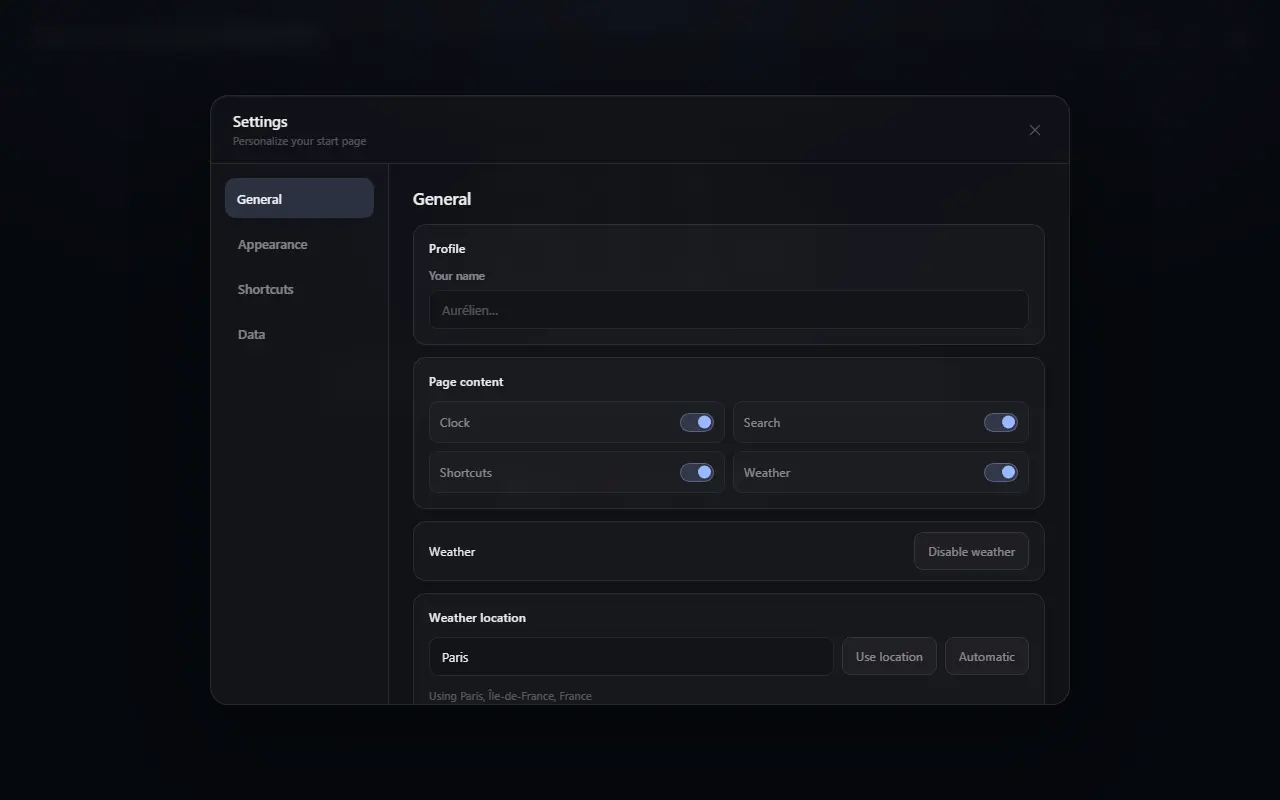
Mist uses a Manifest V3 new-tab override and requests the `search` permission for Chrome’s default search engine. Weather and feedback hosts are optional permissions requested when those features are used.
Its settings remain local and can be exported as JSON. This makes restoration explicit rather than dependent on a Mist account.
Specific answers
Practical follow-up questions
Can I use any website as Chrome’s new-tab page?
Chrome’s supported replacement mechanism is an extension override. Evaluate any “custom URL” extension carefully because it becomes part of every new tab.
Why did Chrome ask me to change back?
Chrome protects settings controlled by extensions. Confirm the change only if you recognize and want the extension.
Does an extension replace Incognito new tabs?
Chrome’s developer documentation states that extensions cannot override the New Tab page in Incognito windows.
Primary references
Sources checked for this guide
Product and policy facts were last checked on 2026-07-25.