
Mist field guide
Chrome new tab settings: how to customize the page
Change shortcuts, backgrounds, colours and Chrome cards with the built-in controls. Add an extension only when you need a layout or behaviour the native page does not provide.
What Chrome can customize without an extension
On a desktop new tab, open Customize Chrome from the lower-right corner or the side panel. Chrome can switch between shortcuts you choose and frequently visited sites, hide shortcuts, select a theme, upload a background image and manage eligible cards.
Google notes that the available new-tab controls can depend on your default search engine and sign-in state. If these controls solve your problem, stop here: the native page is the simplest option to maintain.
- Choose “My shortcuts” for a stable list you edit yourself.
- Choose “Most visited” for an automatically changing list.
- Hide shortcuts when the background or search box is all you want.
- Upload an image or choose a theme, then reset to default from the same panel.
What are cards in Customize Chrome?
Chrome cards are personalized blocks shown below the shortcuts on an eligible New Tab page. They can help you resume browsing, continue with recent tabs or open suggested content based on your activity. Cards are separate from the small website shortcuts shown near the search box.
Google requires you to be signed in for cards to appear. The exact controls can also depend on your default search engine and, in some countries, your linked Google services, so a missing Cards section does not necessarily mean that Chrome is out of date.
- Open a new tab and select Customize Chrome in the lower-right corner.
- Select Cards, then Customize cards.
- Turn individual card types on or off.
- Use a card’s menu to dismiss a specific item without disabling every card.
New tab, homepage and startup settings are different
Chrome uses three related terms for different places. The New Tab page appears when you open a tab, the homepage opens when you select the Home button, and startup pages open when you launch Chrome. Changing one does not automatically change the others.
Chrome can open a chosen website at startup or from the Home button, but it does not provide a native field that makes every new tab open an arbitrary URL. That behaviour requires a new-tab extension, which should be reviewed like any software that runs whenever you open a tab.
Where native customization stops
Chrome’s page is designed for a straightforward background-and-shortcuts experience. It is not a general widget canvas, grouped speed dial or exportable layout.
That limit is useful: fewer moving parts usually means a faster, more familiar page. Consider an extension when a missing control changes your routine—not just because more options exist.
Choose a new-tab extension by behavior, not screenshots
A polished screenshot tells you little about permissions, data storage or how the page feels after hundreds of openings. Review the Store listing, privacy policy, recent maintenance and whether the interface still works with optional features disabled.
- Simplicity: can you hide everything you do not use?
- Shortcuts: flat list, named groups or full bookmark integration?
- Data: local settings, account sync or remote services?
- Permissions: are they narrow, explained and optional where possible?
- Performance: does the first view depend on several network calls?
- Accessibility: keyboard focus, contrast, zoom and reduced motion.
Install, test and remove an extension safely
Install from the Chrome Web Store on desktop, review the publisher and requested access, then choose Add extension. Open several new tabs and test the keyboard, offline behavior and every network-backed feature you intend to use.
To remove it, open Chrome’s Extensions menu, choose Manage extensions, find the extension and select Remove. Chrome’s default new tab returns when the override is removed or disabled.
Where Mist fits
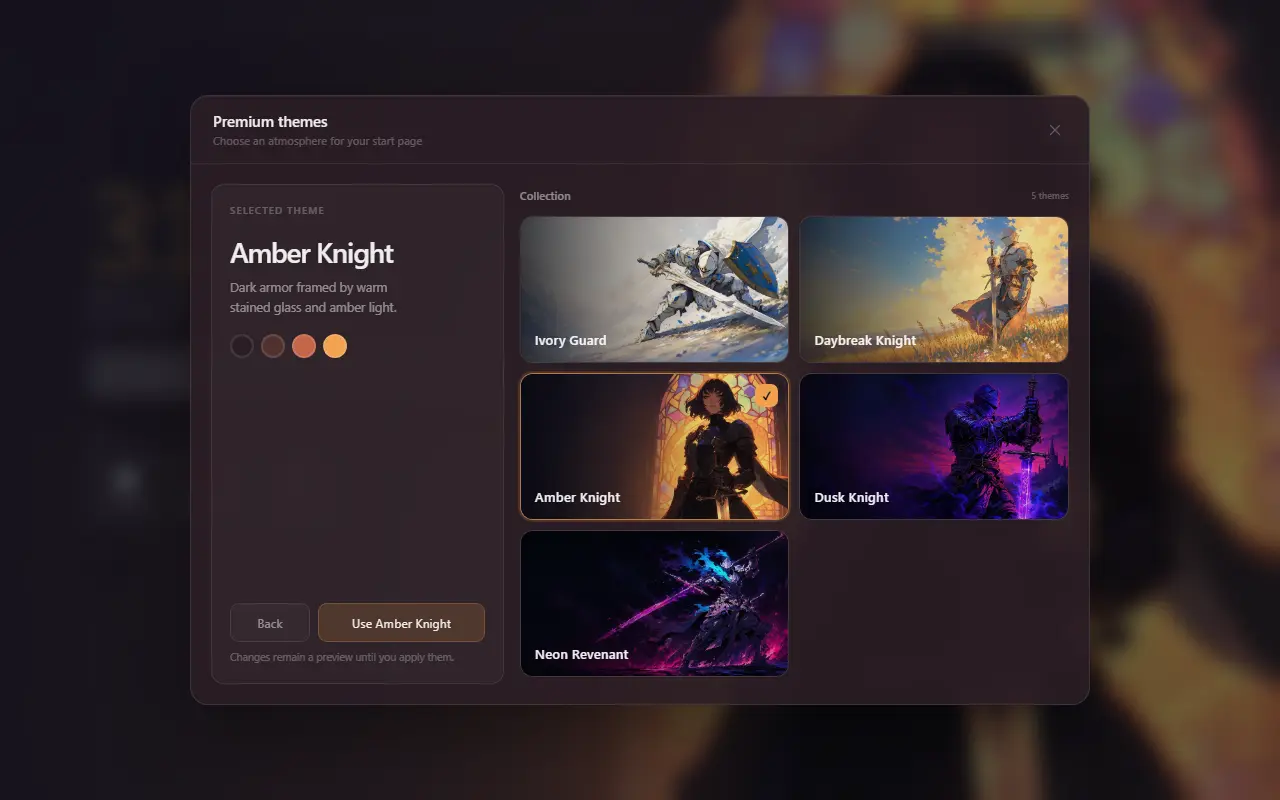
Mist is relevant when you want named shortcut groups, drag-and-drop ordering, JSON backup, browser-default search, optional weather and a choice between minimal colors and illustrated themes.
It has no account or analytics. Settings and shortcut icons stay local unless you explicitly share allowlisted appearance fields; weather and user-submitted feedback use the services documented in the privacy policy. If a background and a few shortcuts are enough, native Chrome remains the leaner choice.
Specific answers
Practical follow-up questions
Can I customize Chrome’s new tab without installing anything?
Yes. Chrome can change the background or theme, manage a simple shortcut list and control eligible cards. Options vary with the default search engine and sign-in state.
What are cards in Customize Chrome?
Cards are personalized blocks below the shortcuts that can help you resume browsing or open suggested content. When available, manage them from Customize Chrome, then Cards and Customize cards.
Can Chrome open a custom URL in every new tab?
Not through Chrome’s native new-tab settings. Chrome supports custom startup and homepage URLs, while a custom new-tab URL requires an extension override.
Can two extensions replace the new tab at once?
Only one extension can control a given Chrome override page at a time. Chrome may ask which extension to keep when another attempts to replace it.
How do I restore the original page?
Disable or remove the new-tab extension from chrome://extensions. Your browser’s default new-tab page will return.
Primary references
Sources checked for this guide
- Customize your New Tab page in Chrome
- Set your homepage and startup page
- Install and manage extensions
Product and policy facts were last checked on 2026-08-21.