

A launchpad you arrange
Put organized shortcuts on every new tab
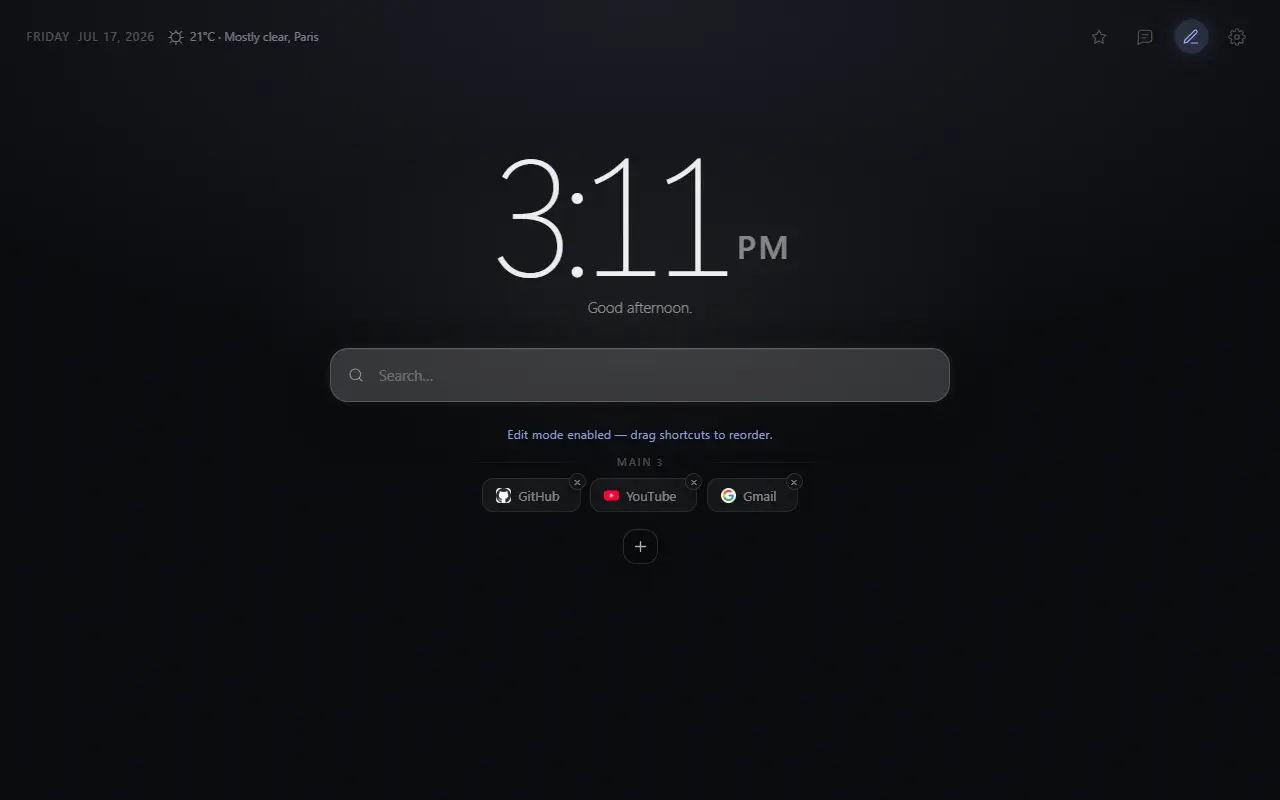
Mist — Minimal New Tab gives favorite sites a clear home. Create groups, drag links into order and choose whether each click stays in the current tab or opens a new one.
The problem
Frequently visited is not the same as intentionally useful
Automatic site suggestions reflect recent behavior. They can surface a distraction as easily as a tool and change when your browsing changes. A curated launchpad is more predictable.
The other common failure is copying an entire bookmark archive onto the new tab. Too many options slow the choice the page was meant to simplify.
Direct answer
Group links by the moment you need them
Use a small set of context names—Daily, Project, Study or Reference—and place only the first destination for each recurring task. A group should answer “where am I going now?” rather than preserve every useful link.
Mist lets you add and remove groups, edit labels and URLs, drag shortcuts between positions and export the result. The visible layout stays quiet outside edit mode.
Why it helps
Benefits tied to this use case
Predictable destinations
Your chosen sites do not reshuffle because a one-off visit became recent.
Faster context switching
Visible group names separate work, learning and personal routines at a glance.
A backup you control
Export only shortcut groups or the complete Mist configuration as JSON.
How it works
Build the page in deliberate steps
- 01
Start with one group
Add the three to five sites you reach for most often.
- 02
Split only when a pattern appears
Create another group when links serve a genuinely different context.
- 03
Use clear, short labels
Name the destination or action so it remains understandable without the favicon.
- 04
Review monthly
Remove stale links and keep the launchpad smaller than your full bookmark library.
Concrete situations
Where this setup earns its place
Project start
Put a repository, issue board, documentation and deployment dashboard in one group.
Study session
Keep the learning platform, notes, calendar and library catalog together.
Daily administration
Collect email, calendar, banking or household services without relying on recent-site suggestions.
Available in Mist now
Features relevant to this page
- Drag-and-drop order
- Reposition shortcuts in edit mode so the most important link is found consistently.
- Group management
- Create named groups and remove an empty group when it is no longer useful.
- Opening preference
- Choose whether shortcuts open in the current tab by default or create a new tab.
- Local shortcut icons
- Use an optional custom icon for recognition; otherwise Mist displays its bundled local icon.
Limitations and trade-offs
Keep sensitive destinations in mind
Shortcut labels, URLs and custom icons are stored locally. Avoid adding labels that reveal sensitive information on a screen others can see.
Export files can contain your shortcut URLs. Treat them like a bookmark backup and store or share them accordingly.
An honest comparison
Custom groups versus Chrome’s shortcut row
Chrome can show shortcuts you choose or frequently visited sites and lets you edit or remove them. That is sufficient for a short, flat list.
Mist adds named groups, drag-and-drop organization and JSON export. The added structure is useful when you have several recurring contexts, but unnecessary when two or three native shortcuts cover everything.
Specific answers
Questions people ask before choosing
Can I move a shortcut between groups?
Mist supports drag-and-drop ordering in edit mode, including arranging links within the group layout.
Can I import an existing Mist shortcut file?
Yes. Mist accepts its JSON shortcut or full-configuration exports and validates the imported structure.
Do shortcuts have to open a new tab?
No. You can choose current-tab opening as the default or switch to opening shortcuts in a new tab.
Are shortcut URLs uploaded to Mist?
No. Configuration and shortcut icons stay local unless you explicitly export a JSON file.