

A manual study setup
Build a focused start page for studying
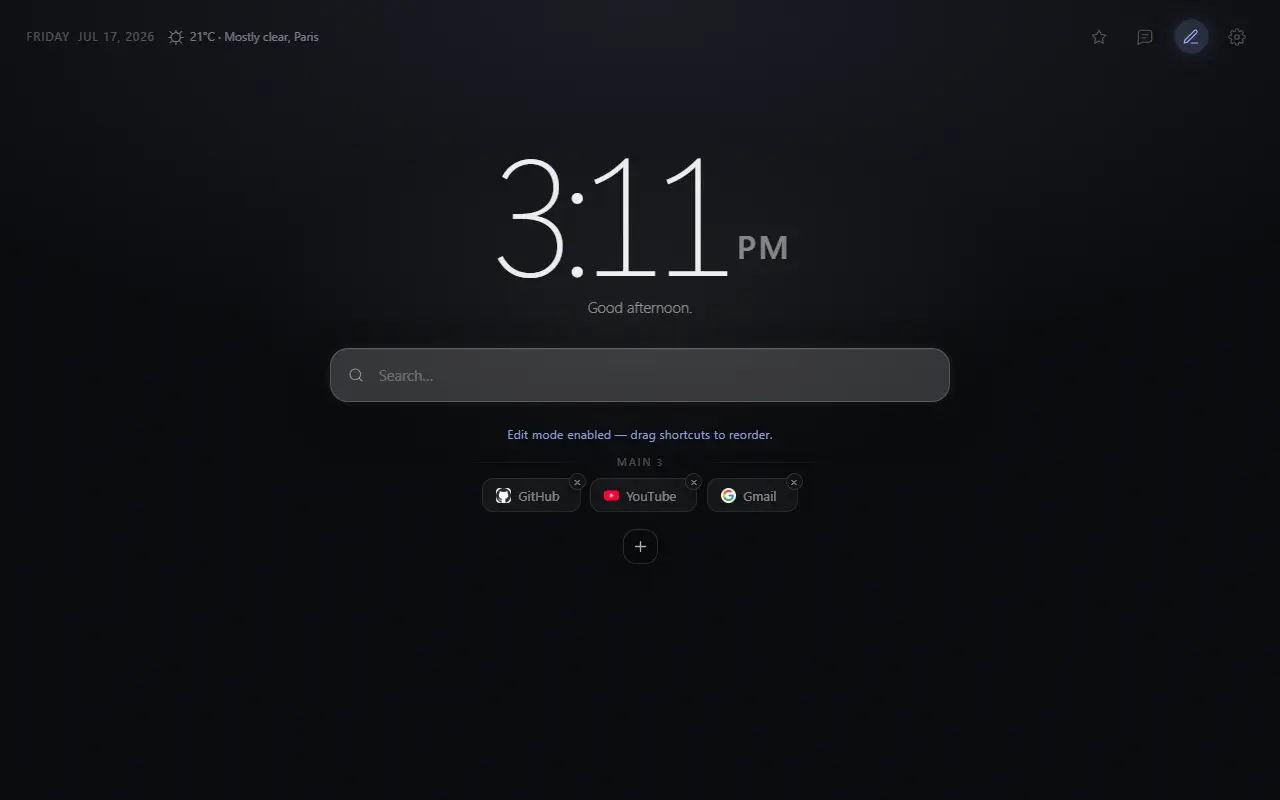
Mist — Minimal New Tab can organize learning platforms, documents, calendars and research tools into a calm launchpad. It does not include a preset; you shape the groups yourself.
The problem
The first click can set the tone of a study session
A default new tab often shows recent destinations, including the ones you meant to avoid. A large academic bookmark archive is not much better when the current course is buried inside it.
A student start page should reduce the distance to today’s materials without becoming another assignment manager to maintain.
Direct answer
Use groups as entry points, not storage
Create one group for classes, one for writing and research, and one for planning. Add the course portal, current notes, library search and calendar—not every document you might need someday.
Mist’s groups, search and clock are currently available. Ready-made Student presets are planned and must not be confused with the manual configuration described here.
Why it helps
Benefits tied to this use case
Fewer distracting suggestions
Chosen study destinations replace an automatically changing list of recently visited sites.
Clear session entry
A course platform, notes and calendar are visible before entertainment or messaging sites.
Portable semester setup
Export shortcut groups before reorganizing for a new term or Chrome profile.
How it works
Build the page in deliberate steps
- 01
Create a Classes group
Link the learning portal and only the courses active this term.
- 02
Create a Research group
Add the library catalog, citation tool and trusted reference databases.
- 03
Create a Planning group
Add the calendar, assignment tracker or document inbox you already use.
- 04
Hide optional noise
Turn off weather or other page elements if they do not help the study routine.
Concrete situations
Where this setup earns its place
Starting a lecture or online class
Open the course portal and notes from one predictable place.
Research and writing
Keep library search, citations and the active document close without adding every source.
Changing semesters
Export the old configuration, then replace course links while keeping the same structure.
Available in Mist now
Features relevant to this page
- Shortcut groups
- Separate classes, research and administration using labels you understand at a glance.
- Search autofocus
- Choose whether typing can start in Mist’s search field or remain in Chrome’s address bar.
- Clock and date
- Keep time orientation visible without adding a schedule or timer system.
- Five interface languages
- Mist’s extension interface supports English, French, German, Spanish and Brazilian Portuguese.
Limitations and trade-offs
Mist is not a learning-management system
It does not track assignments, block websites, run a Pomodoro timer or synchronize a school account. Keep those functions in tools designed for them.
On a managed school computer, an administrator may prevent extension installation. Use Chrome’s native shortcuts or ask the institution before changing the new-tab page.
An honest comparison
A start page versus another productivity dashboard
A task dashboard is useful when you want deadlines, notes and timers in one place. It also creates another system that needs accurate data.
Mist is deliberately narrower: it opens the tools you already use and stays out of the work itself.
Specific answers
Questions people ask before choosing
Does Mist include a Student preset?
Not currently. Student presets are planned. The setup on this page is a manual group structure you can create with existing features.
Can Mist block distracting websites?
No. Mist changes the new-tab page but does not block websites or monitor browsing.
Can I save a setup for the next semester?
Yes. Export the shortcut groups or full configuration as JSON before changing course links.
Will Mist work on a school-managed Chrome profile?
Only if the organization allows the extension. Managed-device policy can restrict Chrome Web Store installations.